How to Post an Image to a Facebook Wall

Facebook How toThis “Facebook basics” article describes how to post or upload an image from your computer to a friend, company or business Facebook wall. This action is important when you want the friend or business to see your photo directly on their page. However, the friend, product or branded page will need to have their Facebook account set up to allow this type of Facebook friend interaction. If the business does not allow posts to their page the “Write something…” message box will not appear on their Facebook page.
Businesses often encourage followers to post comments, photos or videos on their page in order to spread the word about their products or services. Businesses like Mooers Volvo in Richmond, VA and Fur Fabulous Grooming in Chesterfield, VA actively encourage their Volvo and pet-lover fan base to upload photos as part of an open-ended Facebook contest. Winner photos are often featured in the cover photo of Mooers Volvo’s dealership Facebook pages. Facebook contest winners also receive a Volvo-themed gift for their efforts. Fur Fabulous Grooming selects a “Pet of the Month” from recent customers and Facebook followers.

These Facebook image posting steps are very basic, but Facebook newbies sometimes need a little help along the way!

Step 1: Log into your Facebook account

Step 2: Navigate to the Facebook page where you want to post a photo or video.

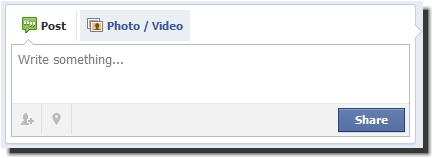
Step 3: Locate the “Write Something…” box just below the Facebook ‘About’ section which is under the cover and profile photo logo.

facebook_image_post0

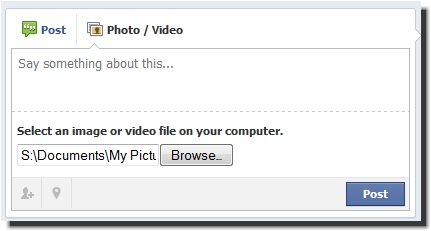
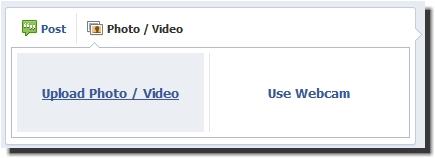
Step 4: Click the “Photo/Video” button

facebook_image_post1

Step 5: Click the “Upload Photo/Video” link

facebook_image_post2

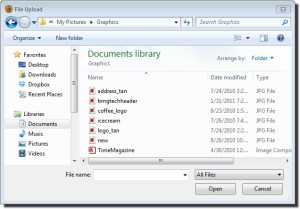
Step 6: Click the “Browse…” button which will make a computer window appear.

facebook_image_post3

Step 7: Find the image on your computer that you want to upload and post on the Facebook page and click ‘Open.” Clicking ‘Open’ will take you back to the Facebook page.

facebook_image_post4

Step 8: Click the “Post” button

facebook_image_post5

Done!

Find more helpful tips in our How To… category of articles related to Facebook and other applications!

Posted in Social Media | Tagged , , , , , , , , , , | 1 Comment

Self-Published Book Promotion 101

Book Promotion 101(updated 2/21/2016)

I have had the opportunity to work with several self-published authors. One of their biggest challenges is to successfully promote and sell their book or books. Since they don’t have the budget and backing of a large publisher they sometimes feel like their options for promotion and selling are few and far between. However, the advent of the internet and digital readers such as Kindle has opened up doors to many successful self-published authors such as Roye Okupe’s E.X.O. The Legend of Wale Williams, Bernard Shaffer’s Guns of Seneca 6 Saga, Barbara Freethy’s The Way Back Home  and William P. Young (The Shack). Here is a quick list of basic promotion ideas for self-published authors.

Website and Ecommerce:

  1. Create a website for the exclusive purpose of promoting your book. A dedicated website is often the single most effective way to increase visibility of your book on the internet. William Young’s website is a great example of a website dedicated to promoting a single book: http://www.theshackbook.com/
  2. Use a low-cost platform such as WordPress.com or even Wix.com to develop your site. Bernard Shaffer’s site is built on Wix as is Virginia author Jayne D’Alessandro-Cox.
  3. Purchase a unique domain name that matches the title or subject of your book for maximum SEO impact and use that domain name for your email address too, i.e. brian@mywebsitename.com.
  4. Allow visitors to purchase directly from your website or provide direct links to Amazon.com or other ecommerce sites for easy purchasing.
  5. Setup an individual seller account on Amazon.com. Amazon is the single largest seller of books on the internet so having your book available here increases exposure.
  6. Create an author profile in Amazon.com (best practice example: Bernard Shaffer)

MetaTags:

  1. Make sure every page of your website has a descriptive “Title” tag. The title tag is what appears at the top of a web browser and is the title saved when someone save’s the page as a ‘favorite’ or bookmarks the page.
  2. Make sure the keywords are not single words. Use phrases you expect people to use when searching for books like yours. Use the free Google Keyword Tool for ideas.
  3. Review or create “description” metatags on all pages for relevance and keyword optimization.

Reviews:

  1. Ask friends, relatives and colleagues to read and review the book on Amazon.com and other sites where the book can be reviewed, e.g. Lulu.com, BN.com, etc.
  2. Publish positive reviews on your website and social media pages.
  3. Search Google for your book to see how and where it is being reviewed so that you can point readers to those pages as well.

Internet Advertising

  1. Set up a low cost Google Adwords Campaign
    • Google typically has a $75 coupon to get started.
  2. Consider a Bing Ads campaign as well. Microsoft Ad Center is the group that controls advertising on Yahoo and Bing and they often have large coupons for first time advertisers allowing you to experiment with ads at no initial cost. Since there is less competition for keywords on Yahoo and Bing, your cost per click will likely be significantly less than on Google. You can also import a Google Campaign directly into MS Ad Center to see which ads are most effective on each platform.
    • MS Ad Center sometimes has very large $100+ coupons for first time advertisers.
  3. Amazon.com also provides advertising and is a great place to advertise book since you can also sell it on the same platform you are advertising!
  4. Consider creating ad campaigns on Facebook and Linkedin as well. Some book subjects lend themselves well to these platforms. Management books may do well on Linkedin and niche topic books can do very well on Facebook since ads can be hyper targeted to a very specific target audience.

Social Media

Setup a business Facebook and Twitter account using an author profile. Creating profiles that are separate from your personal social media profiles will allow you to interact with fans and readers in a very targeted manner. You will also be able to promote your book more directly and can use these professional profiles to increase back links to your book website. Social sites make good landing pages for social media advertising.

Quality Back Links

According to Google, the single most effective way to increase your search engine relevance is to increase the number of other websites linking to your website. This is known as creating back links. Small businesses often develop back links by creating local directory listings. An author can increase quality backlinks by:

  • participating in author forums
  • discussing and promoting the book on social media sites
  • engaging in reciprocal link opportunities, i.e. ask your friends and colleagues to link to the book website from their own websites and social media pages
  • advertising on search engines
  • creating a blog and writing articles related to your book and linking back to your book website of course!
  • writing internet press releases (see PR.com)
  • creating a Craigslist ad for your book and renewing it as often as Craigslist allows (usually four times a month)

Blog Tours

A very popular form of Internet publicity that is beneficial for many authors is a blog book tour. A blog book tour is very much like a traditional book tour, except the visits are all virtual. Instead of going from bookstore to bookstore, the author goes from blog to blog.

Bookmasters.com has an excellent description of what a successful blog tour entails.

For more additional advice or assistance with your promotion efforts feel free to contact me at www.loebigink.com.

Posted in Marketing | Tagged , , , , , , , , | 2 Comments

Great Tech Tools: Google Voice

Google Voice Call TrackingThis article could also be called, “How To Create a Google Voice Number” or”Free Call Tracking for Small Business!

Call tracking is common technique used by big marketing and media firms to measure the effectiveness of internet marketing. These firms use call tracking numbers to document leads that are given to a subscribing organization. Phone call leads are often billed to the client, as in the case of ServiceMagic.com, or are included in performance-based reports to show the value of the purchased service, e.g. AutoTrader.com.

Google allows small businesses access to free call tracking technology with Google Voice. One or more phone numbers can be setup to track phone calls that are coming from a small business website, local directories or other internet sources. The phone number can be targeted to a desired area code in most regions of the U.S. and all calls can be automatically forwarded to a land-line or cell phone. When a call is received, a verbal cue will let you know the call is coming from the Google Voice number.

Other neat optional (and free) features include:

  • custom recorded greetings
  • web access to recorded messages
  • automatic transcription of the customer message into text
  • automatic forwarding of message transcript to a cell phone
  • forwarding voice messages to others via email
  • conference calling
  • call screening
  • call blocking

Here are the simple steps for setting up an account:

  1. Log into, or create, a free gmail account
  2. Navigate to: www.google.com/voice
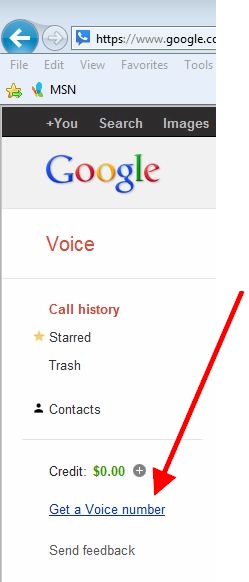
  3. On the left side of the Google Voice page click, “Get a Voice number”
    Google Voice 1
  4. In the popup window click “I want a new number”
    Google Voice 2
  5. In the next window type in the area code you want, e.g. “202” and then click “search numbers”
    Google Voice 3
  6. Scroll through the numbers that are available until you find one you want
  7. Click on the ‘radio button’ next to the number and click “continue”
  8. Create a 4-digit pin number and check the Google Voice Terms and Privacy Policy
    Google Voice 4
  9. Add a forwarding phone number that will will ring when the Google Voice number is called. This can be a land line or mobile number.
    Google Voice 5
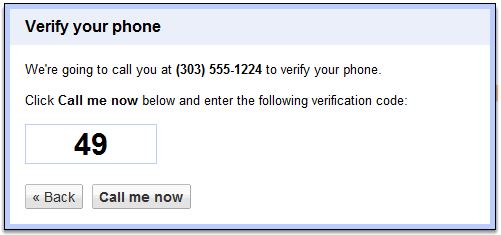
  10. Google will ask you to immediately “Verify your phone” number by calling the forwarded phone and entering a two digit number when that number is called.
    Google Voice 6
Posted in Great Tech Tools, How To... | Tagged , , , , , , , , | Leave a comment

How to remove an IP address from Google Analytics Results

How to Remove an IP AddressSmall business website owners are sometimes skeptical about the reported number of visitors that are frequenting their website. They often wonder how many times their own visits, or visits by staff, impact their Google Analytics results. A fool proof way to eliminate one’s own visits or in-house staff visits from Google Analytics is to ‘filter’ them out of the results. Here is a step by step guide for removing, or filtering out, individual IP addresses or ranges of IP addresses from Google stats.

To remove individual IP addresses:

  1. Find out what your computer IP address is
    1. Visit http://whatismyipaddress.com/ to determine your device’s IP address
    2. You can visit this site with any computer or other internet device such as an Smart Phone, iPad, etc. to determine it’s IP address.
  2. Log into your Google Analytics account
  3. Click the gold “Admin” button on the top right side of the horizontal navigation bar.
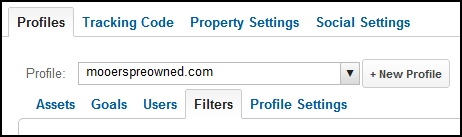
  4. In the “Profiles” tab, select the “Filters” sub-tab.
    IP Address1
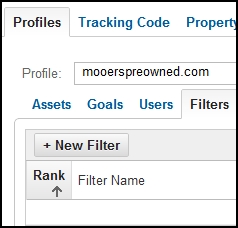
  5. Click the “+New Filter” button
    IP Screenshot2
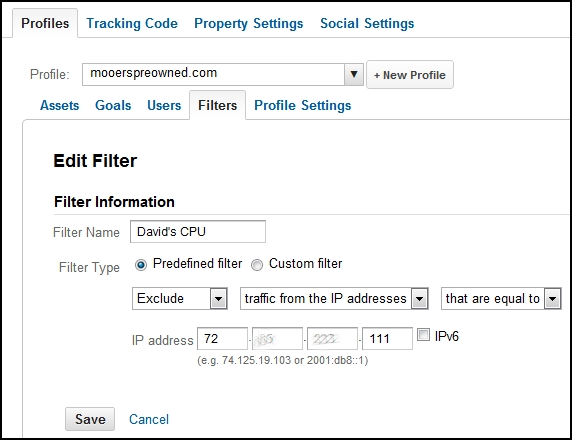
  6. Create a name for the filter such as “David’s CPU” or “John’s iPad”
  7. In the Filter Type leave the ‘Predefined filter’ selected and select “traffic from the IP addresses” from the middle drop down menu
  8. Add the IP address number into the 4 number boxes shown.
    IP Address3
  9. Save

To remove a range of IP addresses:

  1. Find out the full range of your networked computer IP addresses
    1. A great ‘free’ tool for finding out your networked IP addresses is Radmin Remote Control: http://www.radmin.com/products/ipscanner/. This tool is malware and adware free, quick to install, easy to use and is only 6mb’s in size.
  2. Log into your Google Analytics account
  3. Click the “Admin” button on the top right side of the horizontal navigation bar.
  4. In the “Profiles” tab, select the “Filters” sub-tab.
  5. Click the “+New Filter” button
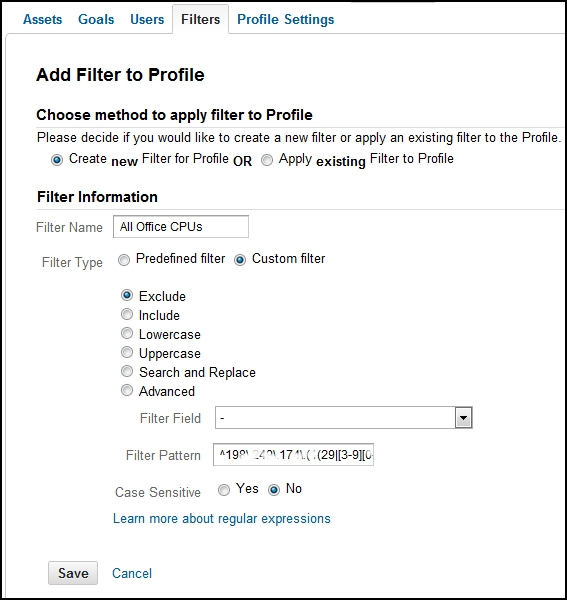
  6. Create a name for the filter range to be excluded such as “All Office CPUs”
  7. Select the “Custom filter” type radio button
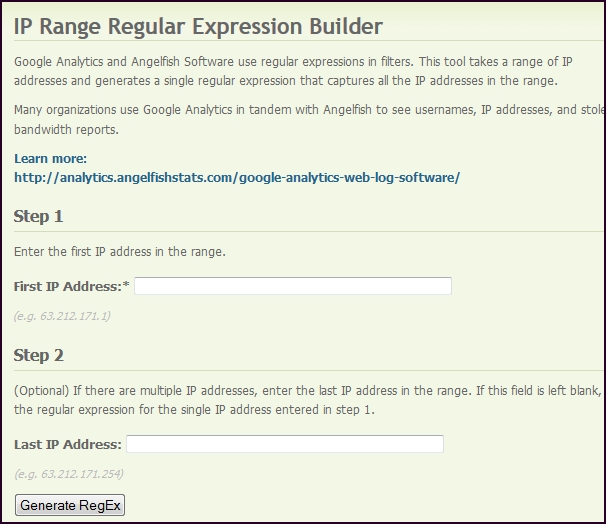
    1. In a new window, navigate to the “AnalyticsMarket” IP Range Regular Expression Builder to generate the ‘filter pattern’ that will be added to this new filter: http://www.analyticsmarket.com/freetools/ipregex
    2. Enter the beginning IP address and last IP address of the range to be filtered and click the “Generate RegEx” button
      ip6
  8. Copy the code that is created after generating  the RegEx
  9. Return to the Google Analytics page and paste the code into the “Filter Pattern” text field
    IP Address5
  10. Save
  11. Done!
Posted in How To... | Tagged , , , , , , , , , , | 11 Comments

Ten Ideas for Blog Content Development

Blog IdeasSome blog writers have a natural gift for pulling ideas out of their experience and writing fresh, compelling articles that speak volumes to their target audience. The rest of us struggle to finish our introductory sentences! These article content ideas have been used in practice by the author over several years. Good luck and good blogging!

  1. Update existing articles to keep them fresh.
  2. Followup existing articles by expanding on a popular content area or theme.
  3. Think of every question, service and support request from a client as an opportunity to provide guidance in a blog article.
  4. Keep a computer file with a shortcut on your desktop to jot down ideas that surface throughout the day. Tech tools such as Evernote, MS One Note and CaptureWizPro are great for grabbing snippets of content, video, images and audio files for article ideas.
  5. Brainstorm common problems your customers have and document solutions in a blog article.
  6. Create a free Google Voice account and dictate messages on it throughout the day with anecdotes or ideas that would be good for an article.
  7. Attend free webinar events and take note of items that would be good fodder for your own target audience, but don’t plagiarize! Use the opportunity to develop ideas with your own unique spin.
  8. Review your blog statistics for popular search terms that are used to find your site. These stats can provide insight into good future articles that will match visitor interest areas.
  9. Review your website analytics for key words and search terms that might spark a blog article idea too!
  10. Invite a guest blogger to write an article. This is a win-win scenario since the blog author will be reaching a new and wider audience and the blog owner will benefit from the authors content and followers.

Visit my other blog-related articles or review these recommended blogs:

Posted in Blogging, Social Media | Tagged , , , , , | 4 Comments

WordPress Blog Management

Blog ManagementManaging blog comments and analyzing key statistics are important aspects of developing a continuously improving, professional blog. This overview will provide guidance to budding bloggers on the most effective ways to seamlessly manage their content and nurture their internet presence.
Managing WordPress Comments

Legitimate comments that appear on your blog are an important indicator of your blogs effectiveness is communicating a message. Feedback and interactions from blog comments can lead to networking and business opportunities and will increase the credibility of your services and brand. In a similar way, managing the comments marked as spam in a blog is an important, but sometimes over looked task of a blog writer. Reviewing spam comments can help you capture legitimate feedback as well as keep black hat marketers from infecting your domain.

Steps for reviewing blog spam:

  1. Scan through all spam marked comments once to quickly delete ones that are obviously spam.
  2. Scan the remaining comments to see if the content of the post matches the article where they were posted.
  3. Watch for statements that could potentially apply to any article. They are likely spam.
  4. If a comment looks legitimate, but you’re not sure if it is spam, copy and paste a portion of the text into a Google search to see if it comes up repeatedly on other blogs.

Analyzing WordPress Statistics

Blog statistics are a valuable source of actionable information. Review you statistics weekly when first starting out and at least every month once your blog is established. The  following overview of the WordPress Statistics Dashboard will help you get started in your quest for web relevance and expanded reach.

Dashboard overview

  1. At a glanceAt a glance
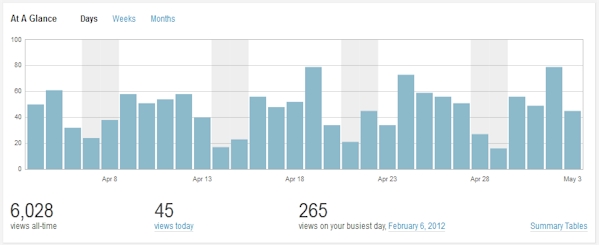
    1. This wide top section of the dashboard provides a graphical view of the visits to your blog. Use this information to evaluate viewing trends that will have implications for the best days to post articles. It also provides a quick way to investigate spikes or dips for further evaluation and action.
  2. Views by countryViews by Country
    1. This view shows where people are seeing your blog in the world. This statistic is especially important if you are targeting articles to particular countries or regions of the world.
  3. Top Posts & Pages
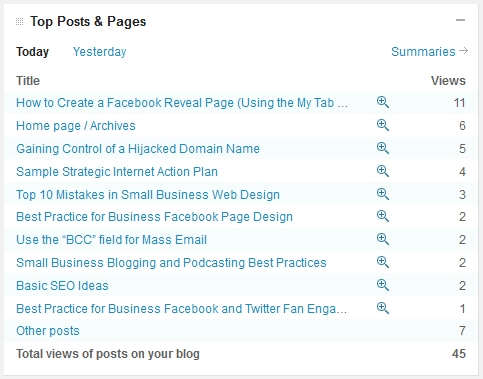
    1. Top Posts & PagesThe default view shows which articles were viewed on the current day and by how many people. Clicking the magnifying glass will show the entire history of view since the article was posted. Viewing the summary data for this section is vital for understanding which articles are most popular and should provide guidance for future topics.
  4. ReferrersReferrers
    1. This statistic provides basic information about how people are finding your blog. If you are trying to increase visibility of blog posts through social media or Google Adwords this will let you know how effective your strategy is. Click on the icons with arrow to show expanded content.
  5. Tags & Categories
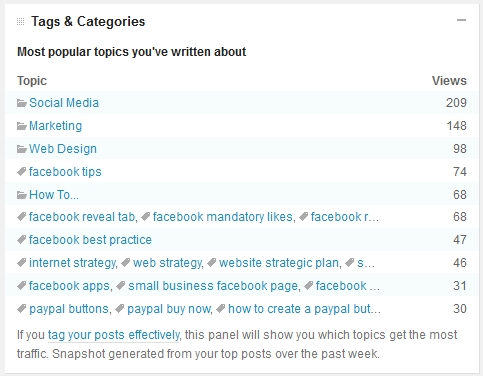
    1. Tags and CategoriesCategories are indicated by a mini file folder and tags have a mini price tag icon. If you have articles that fall into natural categories it is a best practice to group them in this manner so that you can discover the most popular topics by various subject or keyword groupings.
  6. Search engine terms
    1. Search Engine TermsThe search engine terms section is a gold mine of keywords that people are using to find your articles. Use this information to expand keywords and phrases that you may want to consider in article content as well as your business website metatags, on-page content and adwords accounts.
  7. Clicks
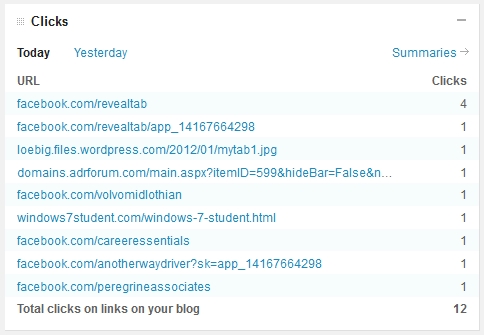
    1. ClicksHyperlinks that you have included in your article content show up in this section. Links that point back to your own website, social media pages and business partner sites is critical for increasing SEO results. Review the summary section to find out which links people click the most.
  8. Totals, followers & shares
    1. Totals, followers & sharesThis summary statistic is a grouping of key information in a blog including the total number of blog posts you have published, total comments by others on your blog, tags that you have created for posts, total number of blog categories, etc.
  9. Comments
    1. Blog CommentsThis section will give you feedback on the articles that spur the most feedback and interaction among readers. Use this feedback to review the writing style among posts to evaluate what influences followers to engage and comment.

Summaries for each category

Most of the dashboard statistical categories have a link to summarized information that displays extensive historical information. These summaries are important to good blog management.

  1. Summary sections provide valuable insight into your content.
  2. When reviewing summary information, ask yourself, “How can I use this information to improve?”
  3. Consider making a plan to implement one idea that flows from each statistical category of information.

For more information on blog best practices visit my article on “Small Business Blogging Best Practices.

Posted in Blogging, Marketing, Social Media | Tagged , , , , , , | 3 Comments

How to create a simple “Buy Now” button in Paypal

ImageAs a small business consultant and webmaster for several start-up organizations, including Another Way Driving School, Career Essentials, LLC and DaySong Studio, I am often asked to create donation buttons for an event or new service offering. This step by steps guide will take you through the basic steps of creating a button that you can insert into your website or email message.

  1. Log into your personal or business PayPal account
  2. Click on the “Merchant Services” tab at the top of the pagePaypal
  3. In the “Features you can use right now” area, click on the “Create payment buttons for your website” area.PayPal 2
  4. On the “Create PayPal payment button” page and complete the first of three steps outlined to create the button:
    1. Step 1:
      1. Choose a button type and enter your payment details
      2. Buy Now Button Process:
        paypalbuynow3
      3. Give the item a name
      4. Select a price
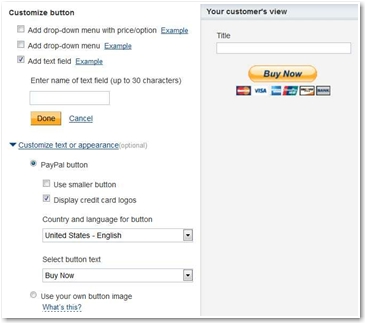
      5. Customize the button if needed
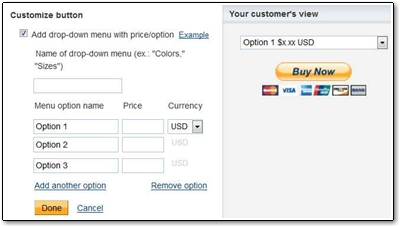
        1. Drop-down menu with price optionspaypalbuynow4
        2. Drop-down menu (without price)paypalbuynow5
        3. Add text field
          paypalbuynow6
      6. Add shipping or tax if needed
  5. Two additional steps are optional and include the ability to track inventory and customize the check out page.
  6. Click the “Create Button” icon
    PayPal 6
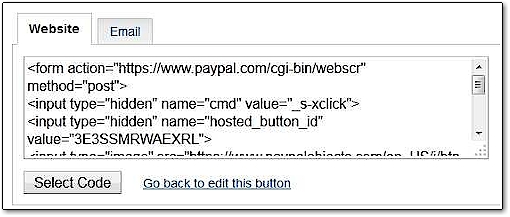
  7. Follow the final three steps to copy the code for insertion in an email or web page
    1. Click Select Code to select all the button code.
    2. Copy the code (CTRL+C for Windows, CMD+C for Mac — or right-click and choose Copy).
    3. Paste the code into your own website or email (CTRL+V for Windows, CMD+V for Mac — or right-click and choose Paste).PayPal 7
  8. To paste the code into a web page open your website editor…
  9. Log into the admin section of your website
  10. Navigate to the page you want to edit
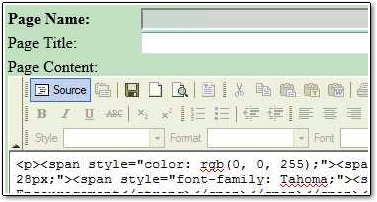
  11. View the “source” code of the pagePayPal 8
  12. Scroll down to the section you want the button to appear and paste the code
  13. View the page to see if it displays appropriately and save!

If you would like a brief personalized training session on creating a donation button for you own website contact me!

Posted in How To..., Web Design | Tagged , , , , , , , , | 2 Comments

How to Create a “Donation” Button in PayPal

How to create a donation button in paypalAs a volunteer webmaster for several non-profits, including the Red Cross of Central Virginia and Holy Rosary Catholic Church, I am often asked to create donation buttons for an event or fundraiser. This step by steps guide will take you through the basic steps of creating a button that you can insert into your website or email message.

[NOTE: Some countries restrict access to the donation features of PayPay including most of Latin American. If the option to create a donation button does not appear in your account, your country likely has rules against it.]

  1. Log into your personal or business PayPal account
  2. Click on the “Merchant Services” tab at the top of the page
    Paypal
  3. In the “Features you can use right now” area, click on the “Create payment buttons for your website” box.
    PayPal 2
  4. Open the “Create PayPal payment button” page and complete the first of three steps outlined to create the button:
    1. Step 1:Choose a button type and enter your payment details
      1. Donation Button Process:
        PayPal 3
      2. Enter the organization or service name
      3. Customize the text or appearance
      1. Choose a button type, i.e. Use smaller button or display credit card logos.
        PayPal 4
      2. Select a contribution amount and merchant account ID
        1. Donors can enter their own information or you can provide a fixed amount for them to donate
          PayPal 5
    2. Step 2:Save your buttons (optional)
      1. Save the button at PayPal if you plan to make a similar button in the future
    3. Step 3:Customize advanced features (optional)
      1. You may want to allow your donors to include a special message or provide their shipping address here.
      2. You can also take them to a different web page after they make their donation
  5. Click the “Create Button” icon.
    PayPal 6
  6. Follow the final three steps to copy the code for insertion in an email or web page
    1. Click Select Code to select all the button code.
    2. Copy the code (CTRL+C for Windows, CMD+C for Mac — or right-click and choose Copy).
    3. Paste the code into your own website or email (CTRL+V for Windows, CMD+V for Mac — or right-click and choose Paste).
      PayPal 7
  7. To paste the code into a web page…
    1. Open your website editor
    2. Log into the admin section of your website
    3. Navigate to the page you want to edit
    4. View the “source” code of the pagePayPal 8
    5. Scroll down to the section you want the button to appear and paste the code
    6. View the page to see if it displays appropriately and save!

If you would like a brief personalized training session on creating a donation button for you own website contact me!

Posted in How To..., Web Design | Tagged , , , , , , , , , , | 28 Comments

Small Business Blogging and Podcasting Best Practices

Blog PodcastSmall Business Blogging

*A blog (a shortened version of the term “web log”) is a personal journal published on the World Wide Web consisting of discrete entries (“posts”) typically displayed in reverse chronological order so the most recent post appears first. Blogs are usually the work of a single individual, occasionally of a small group, and often are themed on a single subject.

  1. Blogs are a great way to communicate a unique message in significant detail. They establish you and/or your business as an expert in the field and greatly increase your SEO rankings and traffic to your website if written regularly.
    1. Use a third party blog platform such as WordPress.com, Blogger.com or Tumblr.com. This will allow greater visibility of your blog on those platforms and will also increase opportunities for back links to your website which is the single most important way to increase SEO rankings (according to Google)
    2. A good website content management system (CMS) can integrate these third party blogs directly into your website so that you don’t need to re-post the content on your site once you publish it on WordPress, Tumblr or Blogger. (I prefer WordPress)
    3. Create a regular schedule of blog posts so that subscribers will begin to look forward to your content. Search engines also favor fresh relevant content.
    4. Once you write a few articles, you can begin to categorize content and use it for training purposes, new client tutorials, new staff orientation, press releases, webinars, etc.
    5. Integrate your blog into your Linkedin page using a free app provided by Linkedin.
      1. Currently, the only blog app Linkedin provides is for WordPress.
    6. I would also suggest rewriting and cross posting your blog articles on an article marketing site such as Ezine.com. This are article distribution services that will allow even greater distribution of your content across the web. However, it is important to rewrite the content so that it is not seen as duplicate content by Google. Ezine Articles is one of the best places for article marketing since they have very stringent rules for article. The top article marketing directories include:
      1. EzineArticles.com
      2. HubPages.com
      3. eHow.com
      4. Squidoo.com
    7. Consider branding your email signatures with links to your website AND blog.
      1. Blog Signature
    8. Create a custom URL for your blog such as “TheInkBlog.net

White Papers for Small Business Promotion

A **white paper is an authoritative report or guide that helps solve a problem. White papers are used to educate readers and help people make decisions, and may be a consultation as to the details of new legislation (product or service).

  1. White papers can be written in the form of a blog entry, but are often positioned as stand alone documents that can be delivered to interested parties as a way to increase newsletter subscriptions and/or Facebook fan connections.
    1. Create an engaging white paper with a meaningful title and unique content that will entice readers to read more.
    2. Create a Facebook ‘reveal page’ that will require visitors to ‘like’ the page AND subscribe to your newsletter in order to receive the free white paper. This is one of the most popular strategies in Social Media Marketing circles to increase Facebook fans and grow email lists. (We can quote you a price for this option)
    3. Promote the white paper on your Linkedin profile, website and other media channels.

Videos and Podcasts to Promote Business

***A podcast is a type of digital media consisting of an episodic series of files (usually audio) subscribed to and downloaded through web syndication. The word is a neologism derived from “broadcast” and “pod” from the success of the iPod, as podcasts are often listened to on portable media players.

  1. Podcasts are beginning to take a back seat to videos, but they are much easier to create and distribute. Since podcasts are typically voice-only interviews or presentations they can be streamed from your website and do not take up much digital space. Videos however create a more visual connection with your target audience and can be loaded into your website and social media channels using free apps provided by the major platforms including YouTube, Vimeo, Facebook, etc.
    1. Record and post podcast or videos to your website, Facebook page, Linkedin page as an update, etc.
    2. Distribute links to the video/podcast in your newsletter
    3. Brand your email signatures with links to your podcast or video channel
* http://en.wikipedia.org/wiki/Blog
**http://en.wikipedia.org/wiki/White_paper
***http://en.wikipedia.org/wiki/Podcast
Posted in Blogging, Social Media | Tagged , , , , , , , , , , , , , | 15 Comments

Linkedin Profile Best Practice Basics

Linkedin Best PracticeLinkedin operates the world’s largest professional network on the Internet with more than 150 billion members in over 200 countries (as of Feb. 2012).  As a result, Linkedin is the best known and most widely used business networking site in the world.

Designing a profile that is professional, complete, up to date, and well organized will best represent your professional accomplishments and maximize the primary benefits of this social network including:

  • Building your personal brand
  • Generating business leads
  • Increasing your business website SEO ratings
  • Establishing your authority or expertise in a subject area
  • Increasing your ability to be found by recruiters or other hiring authorities
  • Helping you make important professional connections
  • Providing you the opportunity to learn and share information
  • Allowing you to discover relationships between your connections
  • The primary content is free!

Here are some simple best practices for maximizing your Linkedin profile:

  1. Use a good profile image
    1. Your profile image is the first thing people notice when they visit your page. Use a close up of your smiling face without a distracting background.Linedin Profile Pics
  2. Create a descriptive headline
    1. Consider expanding on your job title. Use words that paint a broader picture of what you do.
      1. Instead of “Consultant” use “Results Driven Business Coach | Tech Blog Author | Copy Writer
      2. Instead of “Fitness Instructor” use “Fitness Instructor | Wellness Coach | Personal Trainer”
  3. Use good keywords throughout your page
    1. Use keywords that you want to represent the skills, competencies an experience that you most want to highlight. Use those keywords in your current an past positions, in titles and in descriptions.
  4. Post important updates
    1. Click on the Linkedin “Home” button and then “share an update.” All of your contacts will see this info in their updates feed.
      1. Linkedin Share Update
    2. Consider sharing
      1. Blog posts
      2. Newsletter links
      3. Business and professional milestones
  5. Use the “other” box for your website title
    1. In the website section of the main profile area, click the edit link next to the websites section.
    2. Select “Other” from the drop down menu and type in a unique name for your website, blog, newsletter, Facebook page, etc.
      1.  Linkedin Additional Info
  6. Join a few professional networking groups
    1. After joining and participating in relevant groups related to your business or work, share updates in those groups.
      1. After sharing an update on your home page news feed, navigate to your profile page and click the “share” link below the update
        1. Linkedin Share
      2. Then, type in the name of the groups you want to send it to and add a subject and description. (click to see larger image)
        1. Linkedin Share Groups
  7. Install additional applications
    1. Linked in offers the ability to ‘plug in’ additional application on your page including WordPress blog articles, Events, Google Presentations, Box.net files and more.
      1. In the Linkedin menu bar click on “More…Get More Applications”
  8. Customize the contact info box
    1. Move the contact info box up towards the top of the profile and add your phone number in the ‘what advice would you give’ text area.
  9. Ask for recommendations
    1. If you are a small business owner this is one of the most important features of Linkedin. Positive recommendations from other professionals is extremely valuable for building the trust of new potential clients, customers and connections.
    2. Visitors can see who is recommending you and also see how they are connected to your connections as well.

For more tips, tools and technology for small business, visit my website: www.loebigink.com

Save

Posted in Social Media | Tagged , , , , , , , , , | 2 Comments